New · Claude connector

Claude integration: prospecting with AI.

Connect Unique Data to Claude once. Then just ask: prioritize leads, build the cadence, find decision-makers. Claude reads the database straight from the platform, without you downloading a spreadsheet.

6ready-made prompt templates
4delivery formats
6places to open in Claude
Step by step

How the Claude connector works.

There are two parts. You set up the connection only once. The sending, on each database you want to analyze.

Only once

Connect to Claude

On Unique, open “Connect to Claude” from any database's “Send to Claude” or from Database Preferences. The screen shows the connector URL, with a Copy button.

  1. 1
    Open Claude's connectorsClick “Open Claude connectors” and, there, “Add custom connector”.
  2. 2
    Name it and paste the URLUse the name “Unique Data” and paste the connector URL you copied.
  3. 3
    Leave authentication as it isAuthentication set to “Sign in now” and OAuth Client set to “Register automatically”. Headers blank. Click “Add”.
  4. 4
    Authorize on Unique DataOn the screen that opens, sign in with your account and click “Authorize”. If it doesn't open, click “Connect” on the connector, inside Claude.
  5. 5
    Confirm the connectionGo back to Unique and click “I've connected”. The card now shows “Connected to Claude”.
Requires a paid Claude plan: Pro, Max, Team or Enterprise.ONCE
On each database

Send to Claude

In the database menu, “Send to Claude” opens the “Analyze this database's leads in Claude Desktop” screen, with the database name and how many leads it has.

  1. 1
    Choose where to openNew chat, Existing conversation, Project, Cowork, Claude Code or Browser.
  2. 2
    Write the requestStart from a template and replace [DESCRIBE WHAT YOU SELL] with your product. Or write from scratch.
  3. 3
    Choose the formatIn the chat, PDF report, custom .html page or Excel .xlsx spreadsheet.
  4. 4
    SendClick “Send Leads and prompt to Claude”. The prompt is copied with the database reference and Claude opens with it filled in.
  5. 5
    Review and sendClaude reads the leads through the connector. If it opens empty, paste with ⌘V or Ctrl+V.
Only the prompt and the database reference go in the link.NO SPREADSHEET
After connecting

Once connected, you have two paths.

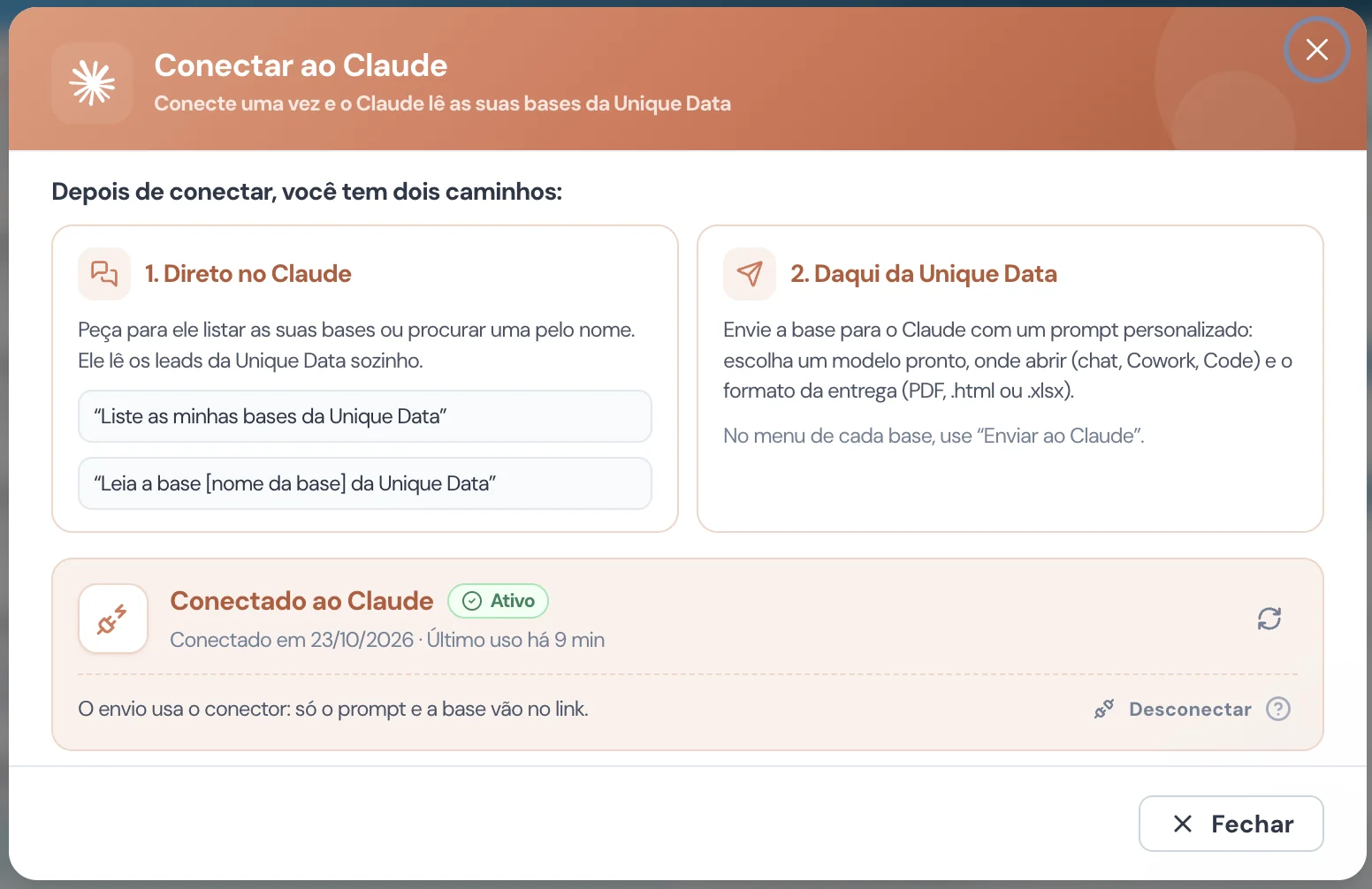
The “Connected to Claude” card shows the Active status, the connection date and last use. From there, choose how to take your databases to Claude.

  • 1. Directly in Claude

    Ask it to list your databases or find one by name. It reads the Unique Data leads on its own. Try:

    “List my Unique Data databases” “Read the [database name] database from Unique Data”
  • 2. From Unique Data

    In each database's menu, use “Send to Claude”. The database goes with a personalized prompt: you choose a ready-made template, where to open (chat, Cowork or Code) and the delivery format (PDF, .html or .xlsx).

Sending uses the connector: only the prompt and the database reference go in the link. To cut access, use “Disconnect” on the same card.

Unique Data's Connect to Claude screen with the two paths after connecting: 1. Directly in Claude, with the requests List my Unique Data databases and Read the [database name] database from Unique Data; 2. From Unique Data, sending through the Send to Claude menu; and the Connected to Claude card with Active status and the Disconnect button
Connect to Claude: the two paths and the “Connected to Claude” card, with Active status.
What you get

Six ready-made requests to analyze leads with AI.

Each template is already written. You swap in what you sell, choose the format and edit whatever you want before sending.

Prioritize leads

A ranking of the 20 companies with the most potential, with the reason in one sentence. Uses sector, size, revenue, time in the market and signals like hiring.

Build an outreach cadence

A 14-day cadence per company profile. Each step has the day, the channel (email, phone, WhatsApp or LinkedIn), the goal and a short text.

Find decision-makers

Who makes the purchase decision at each company: title and area and, when available in the data, name and contact of the partners or people in charge. And who to start with.

Market summary

Sectors (CNAE), states and cities, size, revenue, time since founding and tax regime. At the end, the 3 most attractive segments and why.

Segment the database

From 4 to 6 groups of similar companies by sector, size, region and revenue. For each group: how many companies, the typical profile and how to approach.

Personalized messages

A first contact for the 10 companies with the most potential, with real data for each (sector, size, city, time in the market) and up to 4 lines.

Formats and destinations

The result arrives the way your team uses it.

On the “Send to Claude” screen you choose the delivery format and where Claude opens. The format instruction goes at the end of the prompt.

  • In the chatA text answer, in the conversation.
  • PDF reportTitle, executive summary, tables and charts when they help.
  • Custom .html pageAn interactive dashboard with filters, tables and charts, to open in the browser.
  • Excel .xlsx spreadsheetOne tab per topic, clear headers, filters and formatted columns.

Existing conversation and Project accept a Claude link; without a link, the list opens. Without Claude Desktop installed, choose Browser.

Authorization and security

You authorize. You disconnect whenever you want.

The connection uses OAuth. Claude only accesses your account after you sign in to Unique Data and click “Authorize”.

  • Reading databases

    Claude will be able to read your databases and the leads in each one. If the connection request includes write access, it can also send databases to your CRM and resend the webhook, when you ask.

  • Only in your browser

    Authorization only opens in the browser of the person who clicked connect. A link passed to someone else doesn't work, and old requests expire.

  • Complete data, in your account

    The data read goes to your Claude account. Full mode includes partners, phones and emails. Claude may ask for your permission before using the connector.

  • Disconnect in two places

    On Unique, “Disconnect” cuts access to the license's databases immediately. In Claude, remove it under Settings › Connectors › Unique Data › Remove.

Claude is a trademark of Anthropic. This integration uses Claude's custom connectors and does not imply a partnership with or endorsement by Anthropic.

FAQ

Questions about the Claude integration.

What is Unique's integration with Claude?

It's a connector that gives Claude access to the databases you generated on Unique Data. After connecting, you ask for analyses in plain language and Claude reads the leads straight from the platform, without you downloading a spreadsheet.

Which Claude plan do I need?

The custom connector requires a paid Claude plan: Pro, Max, Team or Enterprise. On business plans, the administrator may need to enable custom connectors. On Unique's side, the connection depends on your license.

How do I connect Claude to Unique Data?

On Unique, open Connect to Claude and copy the connector URL. In Claude, add a custom connector named Unique Data and paste the URL. On the Unique Data screen that opens, sign in with your account and click Authorize. Then go back to Unique and click I've connected.

After connecting, how do I use Claude with my databases?

There are two paths. Directly in Claude: ask “List my Unique Data databases” or “Read the [database name] database from Unique Data” and it reads the leads on its own. From Unique Data: in each database's menu, use Send to Claude and choose a ready-made template, where to open and the delivery format.

Do I need Claude Desktop installed?

To open in New chat, Existing conversation, Project, Cowork or Claude Code, yes: Claude Desktop needs to be installed on the computer. The Browser option opens claude.ai in a new tab and doesn't need the app.

What data can Claude read?

Your databases and the leads in each one. Full mode includes partner data, phones and emails. The data read goes to your Claude account. Only your prompt and the database reference go in the sending link.

In which formats does Claude deliver the analysis?

Four: In the chat, PDF report, custom .html page and Excel .xlsx spreadsheet. The chosen format goes as an instruction at the end of the prompt, and you can edit everything before sending.

How do I disconnect Claude?

On Unique, click Disconnect: Claude loses access to the license's databases immediately. Then remove the connector in Claude too, under Settings, Connectors, Unique Data, Remove.

From database to next step

At Unique you talk to the person who signs the contract!

Book a demo and see a Unique database being analyzed in Claude, from prompt to report.

Talk to a specialist